Sliders / Joystick
Slider
A slider is a 1D controller that drives a single target.
Note
The target type of a slider cannot be changed after creation.
How to Add a Slider
There are two ways to create a slider. Both produce the same result.
From the N Panel
The standard route: pick a container first, then add. Use this when you want to set the range, appearance and mirroring all at once.
- In Pose mode, open the N panel > GUI tab.
- Select the destination container (or a slider inside it).
- Click Add Slider.
- Choose the target type, set the target, then click OK.
From a Property Right-Click Menu
When the property you want to drive is already in front of you, create the slider straight from it. No need to copy and paste a data path.
- Right-click the property you want to control.
- Choose Add New GUI Slider.
- Choose the destination container, enter a slider name, then click OK.
The data path is captured by Blender itself, so nested properties such as those inside a material node tree resolve correctly.
Not sure which container is which?
The select button to the right of the container list makes the chosen container active in the viewport, which helps when the names alone are ambiguous.
Enable Open Detail Settings to open the regular Add Slider dialog with the target property already filled in. Use this when you want to set the range or appearance in detail before creating the slider.
When the command appears
This command appears only for properties whose standard Blender right-click menu provides Add Driver.
To add another property that follows an existing slider, use Add Linked GUI Slider in the same menu. See Linked Driver for details.
Target Types
Shape Key
Controls a Shape Key value on a mesh object.
Custom Property
Controls a custom property on a bone.
- Only bone custom properties are supported
- If the specified custom property does not exist, it is created automatically
Data Path
Controls any Blender property by data path. This is the most flexible target type.
Right-click a property in Blender and use Copy Full Data Path, then paste that path into the field. Numeric properties (float / int / bool) are supported. For array properties, the index is detected automatically from a trailing subscript such as [0].
You can skip the copy step
If you are only going to create a slider for that property, adding it from the right-click menu is quicker — Blender captures and fills in the path for you.
Warning
String properties, and properties whose right-click menu does not show Add Driver, are not supported.
Mirror
Shape Key Mirror
Automatically creates a mirrored pair based on L/R suffixes. One track is split into halves; on screen, R appears on the left side and L on the right side.
- Example:
smile.L↔smile.R
Custom Property Mirror
Pairs targets by the .L / .R suffix in the target bone name.
- Example:
c_hand_ik.l→ mirrored targetc_hand_ik.r(the property name stays the same) - If the property name itself also has an L/R suffix, it is mirrored automatically as well
Warning
Mirror is only available for Shape Key and Custom Property. It cannot be used with Data Path or Joystick.
Supported suffixes: .L/.R, _L/_R, -L/-R (case-insensitive)
Appearance
- Handle Shape: Circle / Arrow / Square / Diamond
- Height: L / M / S
- Track Style:
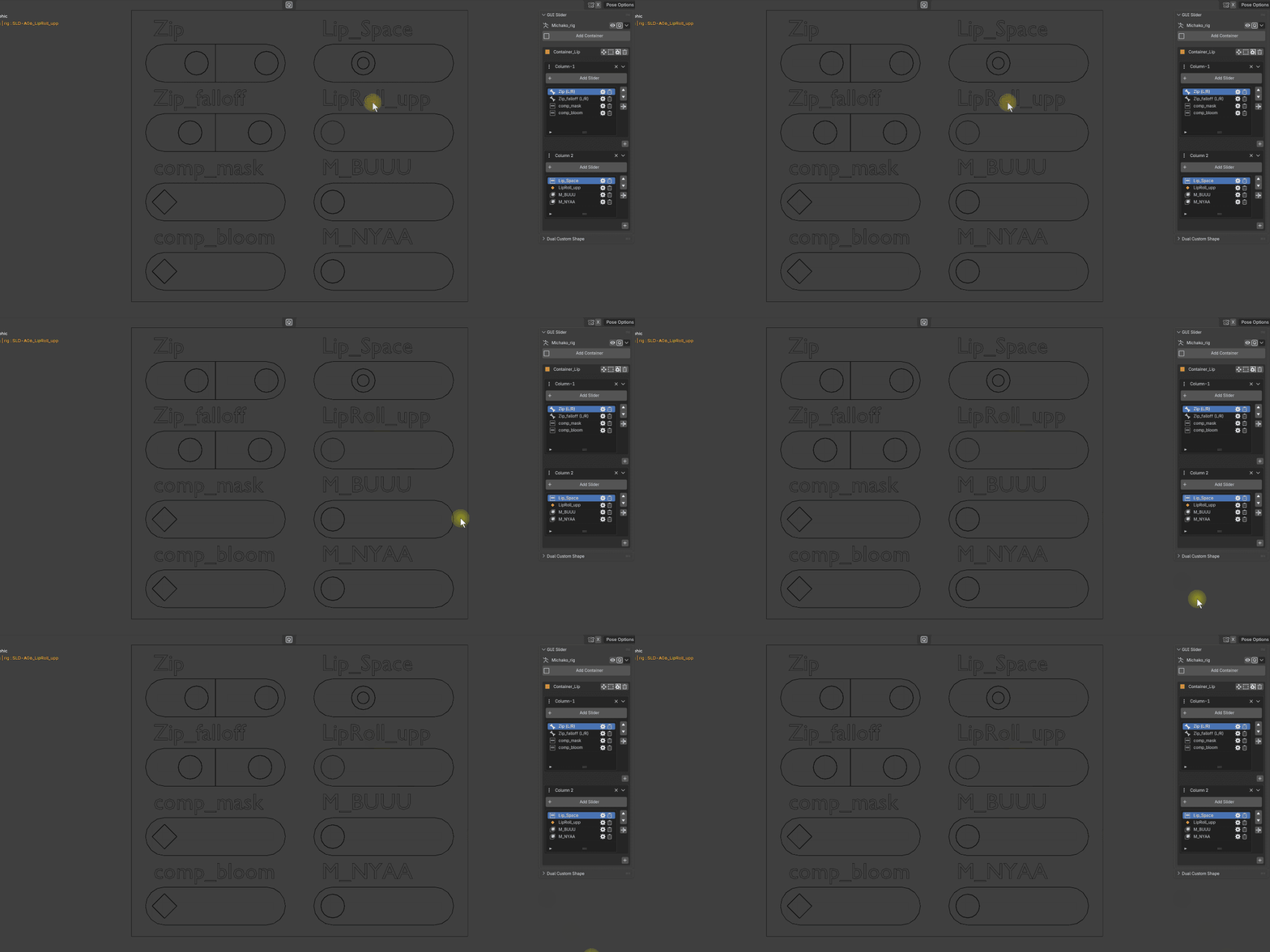
| Style | Description |
|---|---|
| Capsule | A rounded capsule-shaped rail |
| Line | A thin rail. The handle becomes a tall rectangular shape |
Keying Excluded
When Keying Excluded is ON, the slider bone name switches to the GEO- prefix. The handle shape changes to a special double-line icon so it can be distinguished visually.
With this setting enabled, the slider is excluded only from these keying sets:
- Entire Character
- Entire Character (Selected Bones Only)
Warning
If Auto Key is ON, those keying sets will still insert keyframes as usual. To exclude them completely, enable Preferences > Animation > Only Insert Available in Blender.
Reordering
You can manage the display order of sliders from the list in the N panel.
- Select a slider in the list (linked with bone selection in the 3D View)
- Move it with the UP / DOWN buttons
- Confirm the new order with Apply Order
Note
The Relocate Slider button appears beside each column's slider list and is used to move a slider to another column or container. If the list becomes out of sync after Undo / Redo, use Reload to resync it.
Joystick
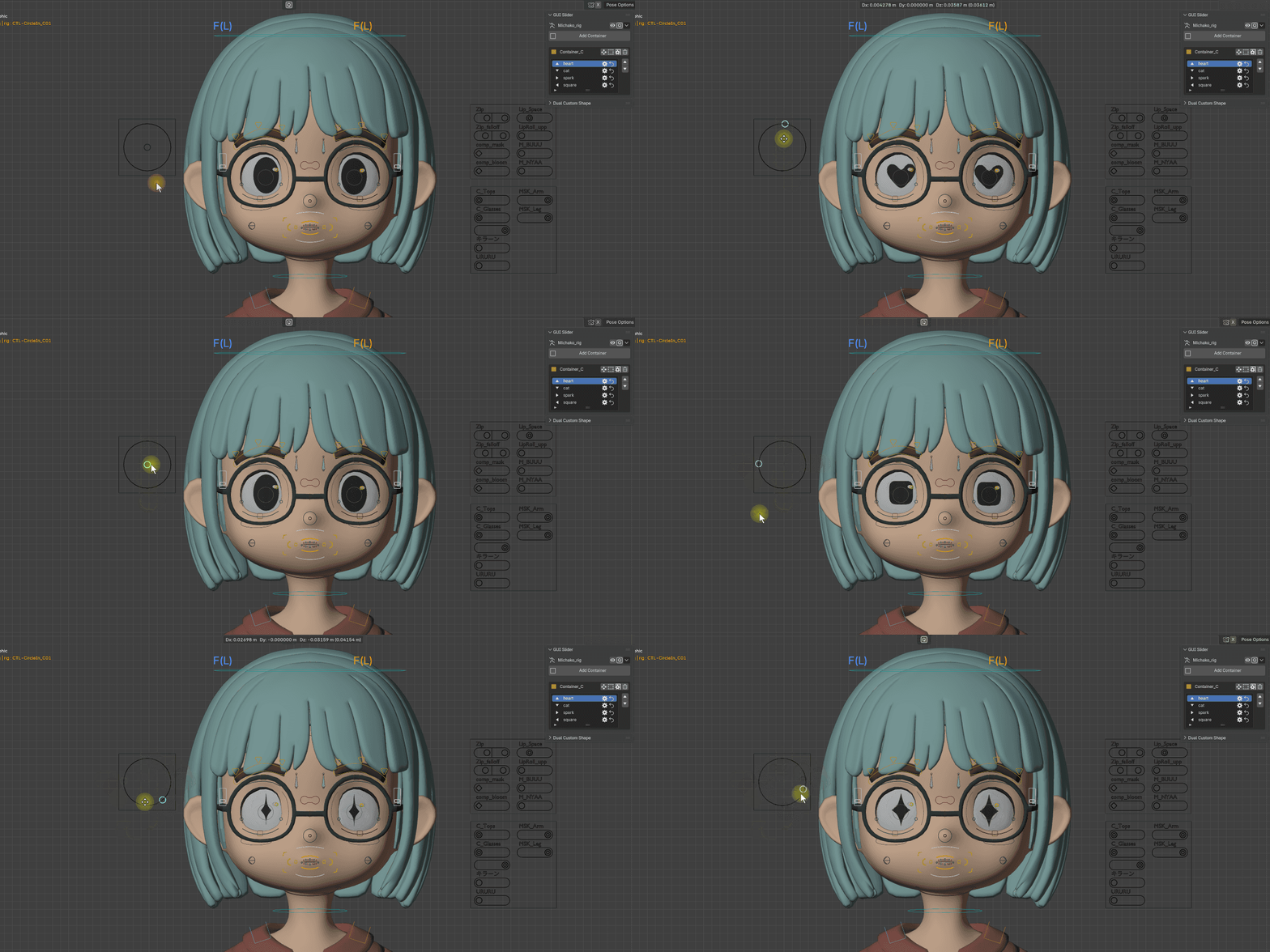
A joystick is a circular 2D controller. You can assign a different target to each of the four directions: up, down, left, and right.
- The outer circle defines the movement limit of the handle
- Drag the inner handle to operate it
- Each of the four directions can have its own target
Per-Direction Target Settings
You can set a target type for each direction (Up / Down / Right / Left). Each direction has its own Range Min / Max and its own independent value range, but the default value is always 0.
Warning
Joystick does not support Mirror or Keying Excluded.